
Picking the right one shapes everything that follows in your build how fast you ship, how easily you debug, and how much friction your team hits scaling from prototype to production. With Android still commanding the largest share of the global mobile OS market, the tooling ecosystem around it has matured into a genuine spectrum: official Google-backed editors, JetBrains-powered alternatives, lightweight cross-platform options, and even mobile-first IDEs that run on a phone. This guide compares the ten best IDEs for Android app development in 2025, with the features, trade-offs, and ideal use case for each, so you can match the tool to your project instead of defaulting to whatever’s most familiar.
What Makes a Good IDE for Android App Development?
A strong IDE for this purpose combines four things: deep integration with the Android SDK, real-time debugging and emulation, a code editor that catches errors before runtime, and a plugin or extension ecosystem that adapts to your stack. Without SDK integration, you lose access to emulators, APK building, and Play Store packaging core requirements for shipping any app. Debugging tools matter just as much, since catching a layout or memory issue in the editor is far cheaper than catching it after release. The ten tools compared below differ mainly in how they balance these four pillars: Android Studio leans hardest into official SDK depth, while VS Code and Eclipse Theia lean into flexibility and lightweight performance instead.
1. Android Studio
Android Studio remains the official IDE for Android development, built by Google in collaboration with JetBrains on the IntelliJ IDEA platform. It offers a comprehensive suite tailored specifically for Android app creation, from layout design to performance profiling.
Key features include an intelligent code editor with real-time error detection, a drag-and-drop layout editor for UI design, an Android Emulator for multi-device testing, an APK Analyzer for performance optimization, Git/GitHub integration, and AI-powered code suggestions.
Pros: it’s free and open-source, integrates seamlessly with the Android SDK and Google Play services, and has extensive documentation.
Cons: it’s resource-intensive on lower-end hardware and has a steeper learning curve for first-time users.
Best for: developers building native Android apps, from solo beginners to enterprise teams.
2. IntelliJ IDEA
IntelliJ IDEA, developed by JetBrains, is a versatile IDE that supports Android development alongside many other platforms and languages. Its advanced code analysis and plugin ecosystem make it a long-standing favorite among professional developers building serious, production-grade apps.
Key features: smart code completion and advanced refactoring tools, version control integration with Git, Maven, and Gradle, built-in database tools, and a vast plugin marketplace for customization.
Pros: highly customizable with thousands of plugins, excellent Kotlin and Java support, and built to scale on large, complex codebases.
Cons: the Ultimate Edition with advanced features is paid, and the depth of options can overwhelm newcomers.
Best for: advanced developers and enterprises building complex, multi-module Android apps.
3. Visual Studio Code (VS Code)
Visual Studio Code, Microsoft’s lightweight code editor, has evolved into a capable IDE for Android app development through its extensive extension library rather than built-in native support.
Key features: IntelliSense for smart code completion and error detection, an extension marketplace with Android-specific tooling, built-in debugging and Git integration, and full cross-platform support across Windows, macOS, and Linux.
Pros: it’s free and open-source, highly customizable through extensions, and noticeably lighter and faster than full IDEs.
Cons: it requires manual setup for Android development and offers less out-of-the-box integration than Android Studio for native tasks.
Best for: developers who want a lightweight, customizable environment, especially for cross-platform or hybrid builds.
4. Eclipse
Eclipse is a free, open-source IDE that was once the primary choice for Android development before Android Studio’s release. In 2025, it remains relevant for Java-based projects and developers who want a fully customizable environment.
Key features: a plugin ecosystem supporting Android Development Tools (ADT), code assistance with auto-completion and error detection, a drag-and-drop UI designer, and version control integration with Git and SVN.
Pros: it’s free, highly customizable, backed by strong community support, and lighter than Android Studio in some configurations.
Cons: it’s noticeably outdated for modern Android development and can become resource-intensive on larger projects.
Best for: developers building small Java-based Android apps or maintaining legacy projects still on older codebases.
5. AIDE (Android IDE)
AIDE is a unique IDE that lets developers write and run Android app code directly on an Android device, making it genuinely useful for mobile-first, on-the-go development.
Key features: full mobile coding on Android phones or tablets, real-time layout updates as you type, integration with Google Play Services, and interactive coding tutorials built in for beginners.
Pros: it’s portable and convenient for coding without a laptop, beginner-friendly with guided tutorials, and free with optional premium upgrades.
Cons: functionality is limited for large or complex projects, and performance depends heavily on the device’s hardware.
Best for: beginners and hobbyists learning Android app development without committing to a desktop setup first.
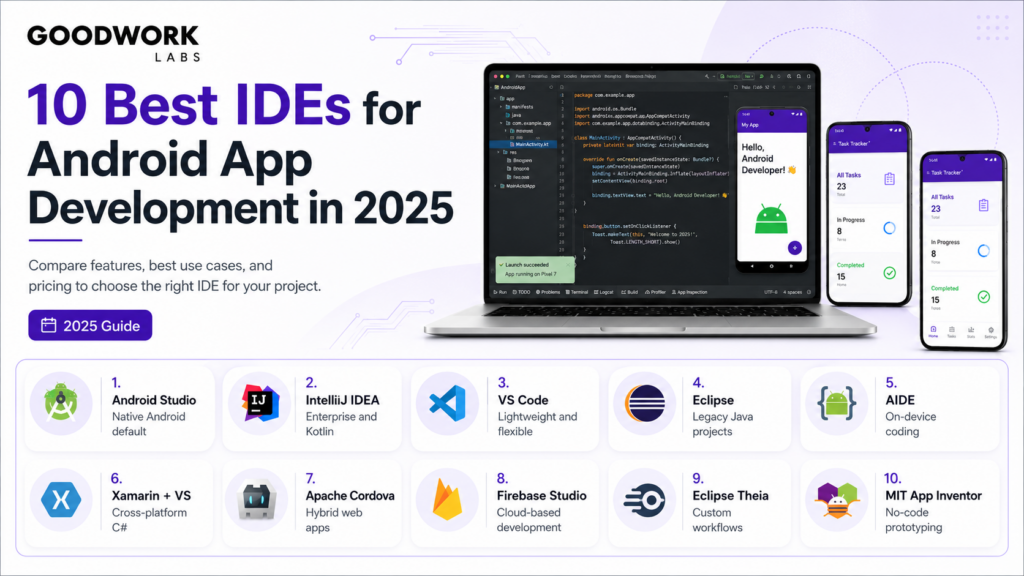
6. Xamarin with Visual Studio
Xamarin, paired with Visual Studio, is a powerful IDE combination for cross-platform development, letting teams share a single C# codebase across Android and iOS. This makes it a popular choice for custom app development projects targeting both platforms simultaneously.
Key features: cross-platform development with a shared codebase, deep integration with .NET libraries, native-level performance and UI rendering, and comprehensive testing and debugging tools.
Pros: efficient code sharing cuts platform-specific work significantly, strong support for C# developers, and robust tooling inside Visual Studio.
Cons: it requires Visual Studio, which can carry licensing costs, and presents a learning curve for developers unfamiliar with C#.
Best for: developers building cross-platform apps who want one shared codebase instead of two separate native builds.
7. Apache Cordova
Apache Cordova is an open-source framework for building hybrid Android apps using familiar web technologies HTML, CSS, and JavaScript instead of native Android code.
Key features: cross-platform development capabilities from a single codebase, WebView integration for rendering content, a plugin ecosystem for accessing native device features, and a command-line interface for streamlined build workflows.
Pros: it lets web developers reuse existing skills to build mobile apps, simplifies access to native features through plugins, and benefits from an active community.
Cons: performance can lag behind fully native apps, and access to some advanced native features stays limited.
Best for: web developers transitioning into building mobile apps without learning a new language from scratch or businesses that would rather skip the learning curve entirely and work with an established mobile app development service instead.
8. Firebase Studio
Firebase Studio, formerly known as Project IDX, is Google’s browser-based IDE offering a cloud-hosted development environment with built-in AI capabilities.
Key features: fully cloud-based development with zero local setup required, a built-in AI assistant for code suggestions, native integration with Firebase services, and support for multiple languages and frameworks beyond just Android.
Pros: it’s accessible from any device with a browser, streamlines remote team collaboration, and simplifies wiring up Firebase tools like authentication and databases.
Cons: it depends entirely on internet connectivity, and it can lack some advanced features found in mature desktop IDEs.
Best for: developers who want a cloud-based environment with tight, built-in Firebase support.
9. Eclipse Theia
Eclipse Theia is an open-source framework for building IDEs rather than a single fixed tool, offering a customizable and extensible platform for both cloud and desktop applications.
Key features: a modular architecture built for deep customization, compatibility with Visual Studio Code extensions, support for multiple programming languages, and flexible deployment across cloud and desktop.
Pros: it’s highly customizable to fit specific organizational workflows, fully open-source with active community backing, and flexible on where it runs.
Cons: it requires real setup and configuration work for Android development specifically, and carries a steeper learning curve for first-time users.
Best for: organizations that want a fully customizable IDE tailored to their exact development workflow.
10. MIT App Inventor
MIT App Inventor is a free, web-based visual programming environment that lets users build Android apps through a drag-and-drop, block-based interface instead of writing traditional code.
Key features: block-based coding designed for ease of use, real-time testing directly on connected devices, integration with various online services, and a library of educational resources for learning app-building logic. This makes it less a professional tool and more an entry point ideal for students, educators, and non-technical founders validating a concept before they hire custom Android app developers to build the real version.
Best for: beginners, educators, and anyone prototyping an idea before committing to full custom app development.
Have an app idea but no in-house Android team?
Talk to Our Android App Development Team →
How Should You Choose Among the Best IDEs for Android App Development?
Choosing the right one comes down to matching the tool to your project’s platform target, team skill set, and budget, not picking whatever ranks highest on a list. If you’re building Android-only and want maximum SDK depth, Android Studio is the default; if your team already codes in C# or wants Android and iOS from one codebase, Xamarin or Cordova fit better. Teams with existing JetBrains or VS Code workflows often extend those environments rather than learning a new tool from scratch, since switching costs in onboarding time often outweigh marginal feature gains. The clearest mistake teams make is choosing tooling based on hype rather than what their actual stack, team experience, and platform targets require.
Why Does the Right IDE Matter for Custom App Development?
The right IDE directly affects how fast a custom app development project moves from concept to a stable build, since debugging speed, emulator accuracy, and SDK integration compound across thousands of build-test cycles over a project’s lifetime. A mismatched IDE say, a no-code tool stretched into handling complex backend logic creates technical debt that resurfaces expensively later, often forcing a full rebuild once the app outgrows the tool’s ceiling. This is precisely why professional teams doing custom Android app development standardize on IDEs like Android Studio or IntelliJ IDEA early, even for MVPs, rather than starting on a lightweight tool and migrating mid-build. Getting this choice right at the start avoids the costliest kind of rework: rebuilding an app’s foundation after launch.
When Should You Hire a Custom Android App Developer Instead of Building Solo?
Hire a custom Android app developer once your app needs functionality beyond what drag-and-drop or template-based tools can support custom backend integrations, payment gateways, real-time data sync, or performance at scale. Solo or no-code builds work fine for validating an idea, but most fail to hold up under real user load, security scrutiny, or Play Store review standards once traction starts. Experienced developers also bring judgment that tooling alone can’t replace: knowing which IDE, architecture, and libraries fit your specific app rather than a generic tutorial setup. For businesses serious about launching publicly or raising funding on the strength of their product, partnering with a proper mobile app development service early is consistently cheaper than rebuilding a fragile prototype after the fact.
| IDE | Best For | Cost |
|---|---|---|
| Android Studio | Native apps, all skill levels | Free |
| IntelliJ IDEA | Complex enterprise apps | Free / Paid Ultimate |
| VS Code | Lightweight, cross-platform | Free |
| Eclipse | Legacy Java projects | Free |
| AIDE | On-device, beginner coding | Free / Premium |
| Xamarin + VS | Cross-platform, C# teams | Paid (VS license) |
| Apache Cordova | Web devs going hybrid | Free |
| Firebase Studio | Cloud-based, Firebase-heavy | Free |
| Eclipse Theia | Custom org workflows | Free |
| MIT App Inventor | No-code prototyping | Free |
Conclusion: Pick the IDE That Fits Your Project, Not the Trend
No single IDE wins for every project the right pick depends on whether you’re building native, going cross-platform, prototyping without code, or scaling an enterprise codebase. Android Studio remains the safest default for most native Android work, while specialized tools like Xamarin, Cordova, or Firebase Studio earn their place for specific team setups and platform goals. What matters most isn’t which tool ranks first on a list, but whether it matches your team’s skills, your app’s complexity, and where the project needs to go next.
Not sure which stack fits your app idea?